

Set up single sign-on
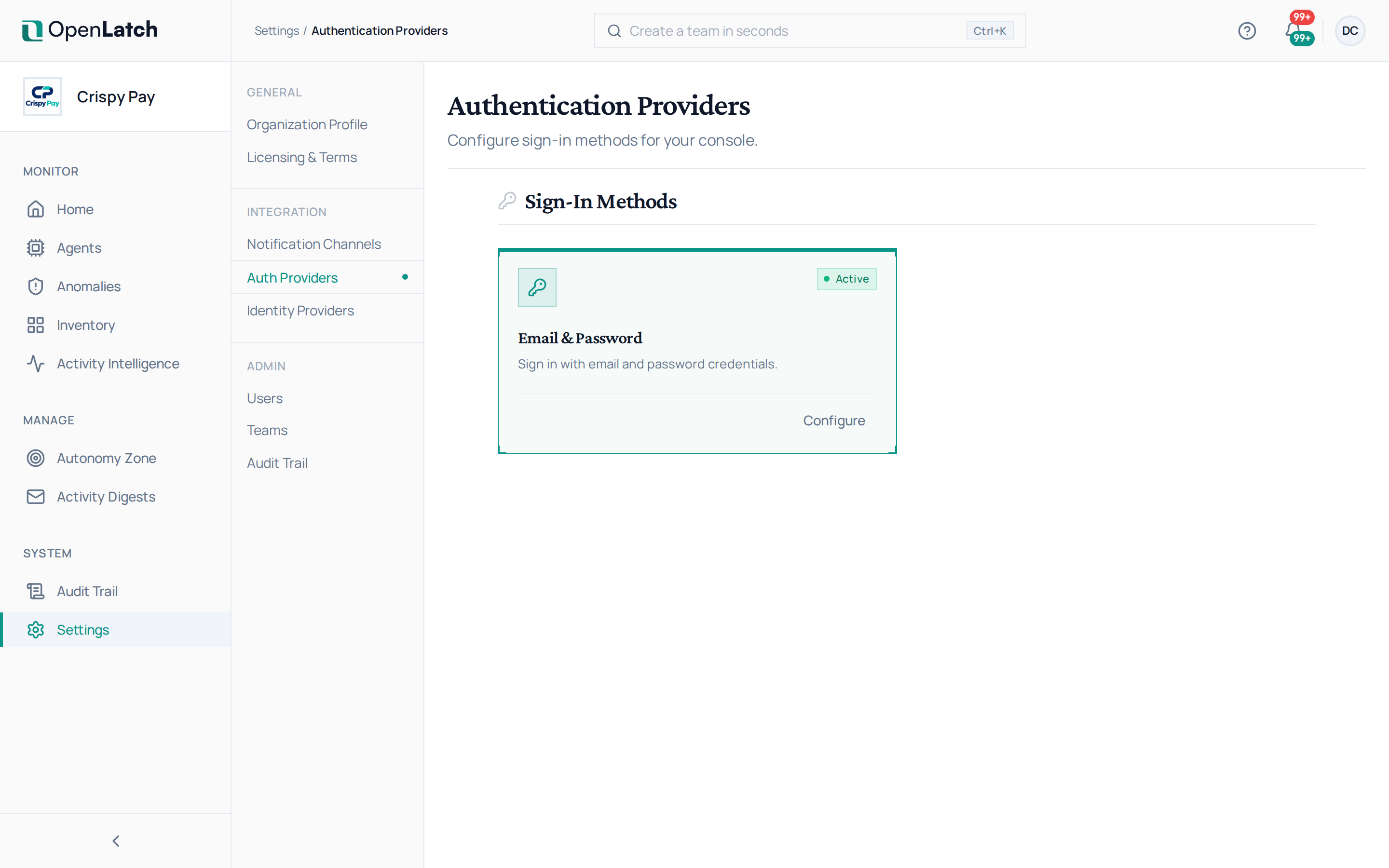
Use Settings › SAML SSO to connect your corporate identity provider, and Settings › Auth Providers to review your organization’s sign-in methods and require two-factor authentication. You need the admin role or higher.
Connect SAML single sign-on
Section titled “Connect SAML single sign-on”The console supports SAML 2.0, configured per organization. Microsoft Entra ID, Okta, PingOne and Active Directory Federation Services connect this way.
- Open Settings › SAML SSO. Copy the service provider information into your identity provider when you create the SAML application there: the Assertion Consumer Service (ACS) URL, the SP entity ID and the SP metadata URL.
- Select your identity provider for setup instructions written for it, then enter its details: its entity ID, its sign-on URL, and its signing certificate or metadata URL. Your identity provider’s assertion must carry the user’s email address and display name.
- Add the allowed email domains. People with an address in one of them can sign in through SAML. A domain can belong to one organization only; the console tells you if another organization has already claimed it.
- Save, then run the connection test. It checks, against the saved configuration, that your identity provider’s metadata URL or sign-on URL answers; it does not perform a SAML sign-in. Then sign in through SAML yourself, in a private browser window, before you tell anyone else to.
A per-organization SAML connection is the only sign-in method that admits a new member without an invitation, and only for the allowed domains.
Review sign-in methods and require two-factor authentication
Section titled “Review sign-in methods and require two-factor authentication”Settings › Auth Providers shows your organization’s sign-in methods as cards, each with its state: Email & Password, and SAML SSO when SAML is available on your OpenLatch site. Configure on a card opens its settings.
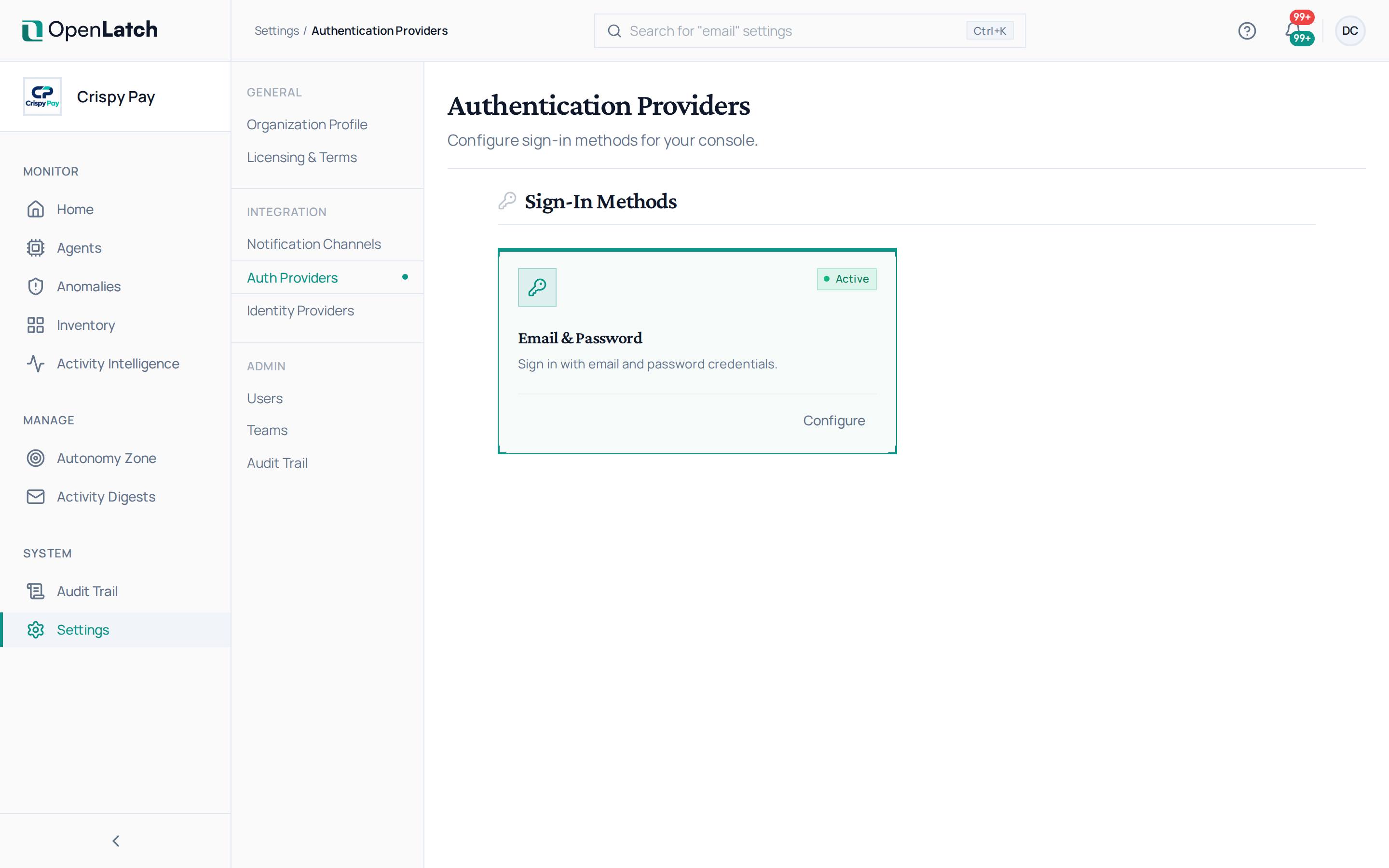
| Card | Configure opens |
|---|---|
| Email & Password | The two-factor policy. Require two-factor authentication to prompt every password-based user without it to set it up. After the grace period you choose, they are sent to their security settings at each sign-in until they do. Users who sign in only through an external provider are exempt. The card shows MFA Required while the policy is on |
| SAML SSO | The SAML connection, configured as above |
Each person sets up their own two-factor authentication from their account; see Manage your account.