

Manage your account
Your account settings are your own: every role can change them. Open them from your avatar in the console; Account opens on your profile.
Edit your profile
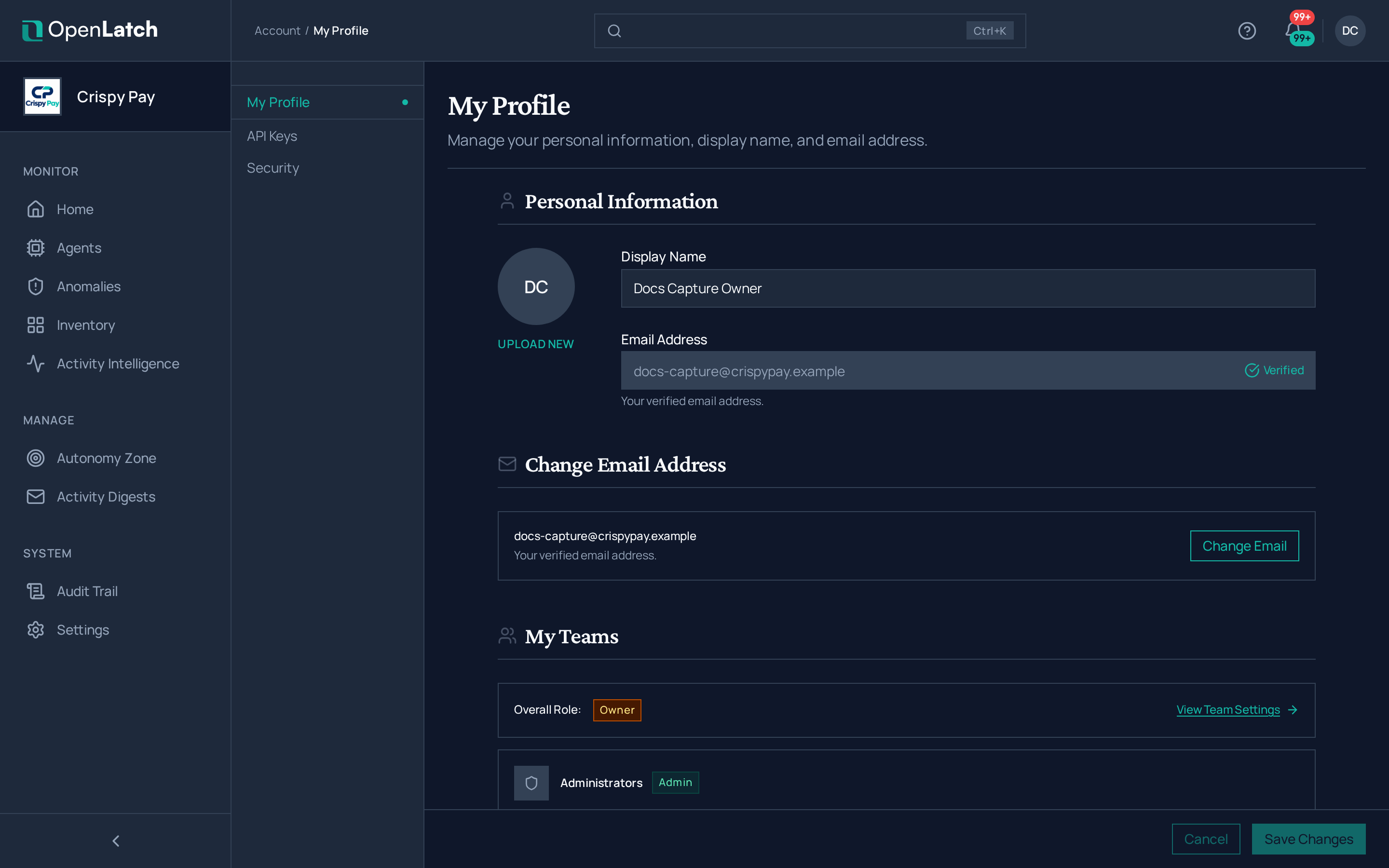
Section titled “Edit your profile”Account › Profile holds your personal information: your display name and your email address. Changing your email address asks for your current password.
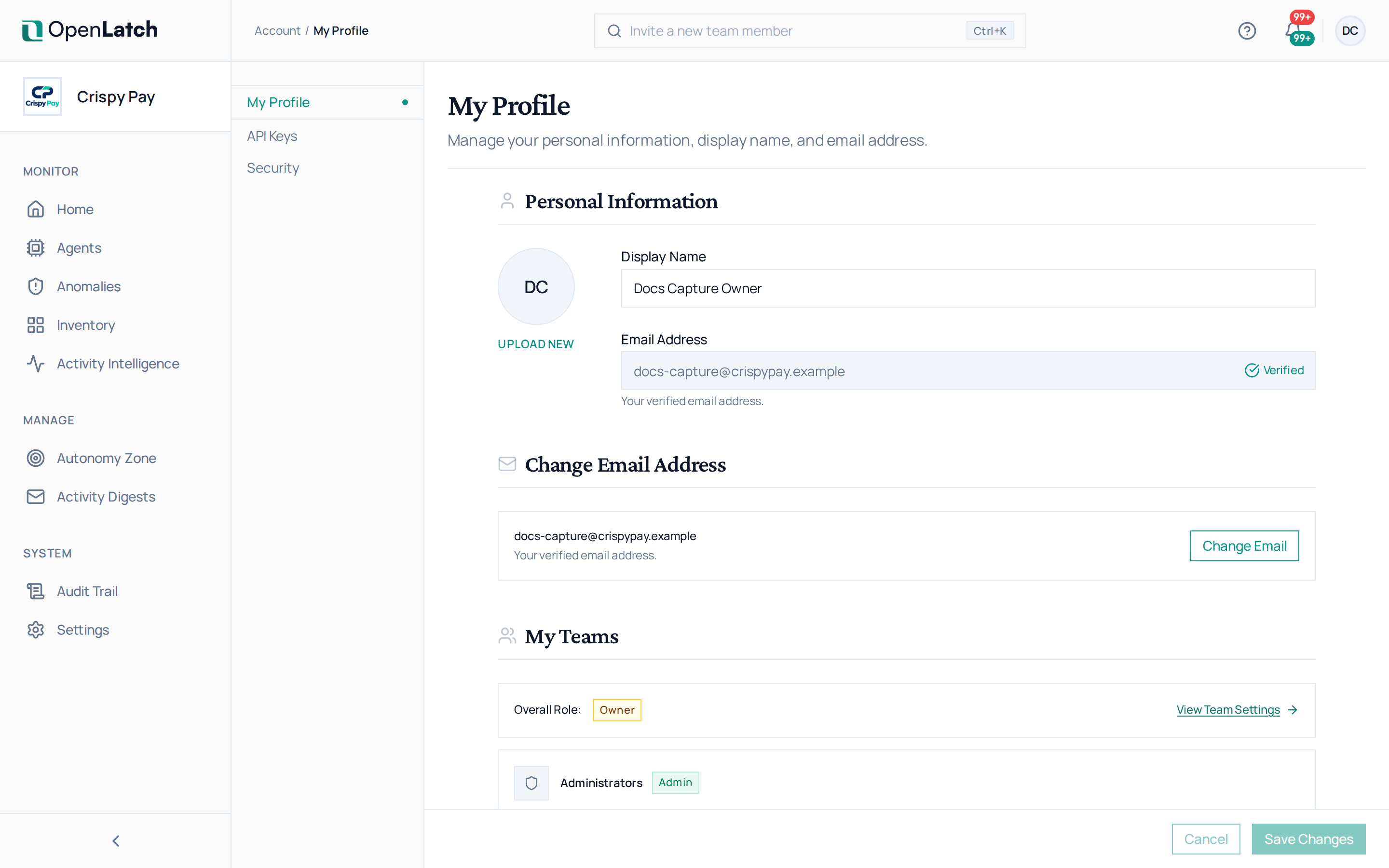
Your account also lists your active sign-in sessions across devices. Sign out of any session you do not recognize.
Secure how you sign in
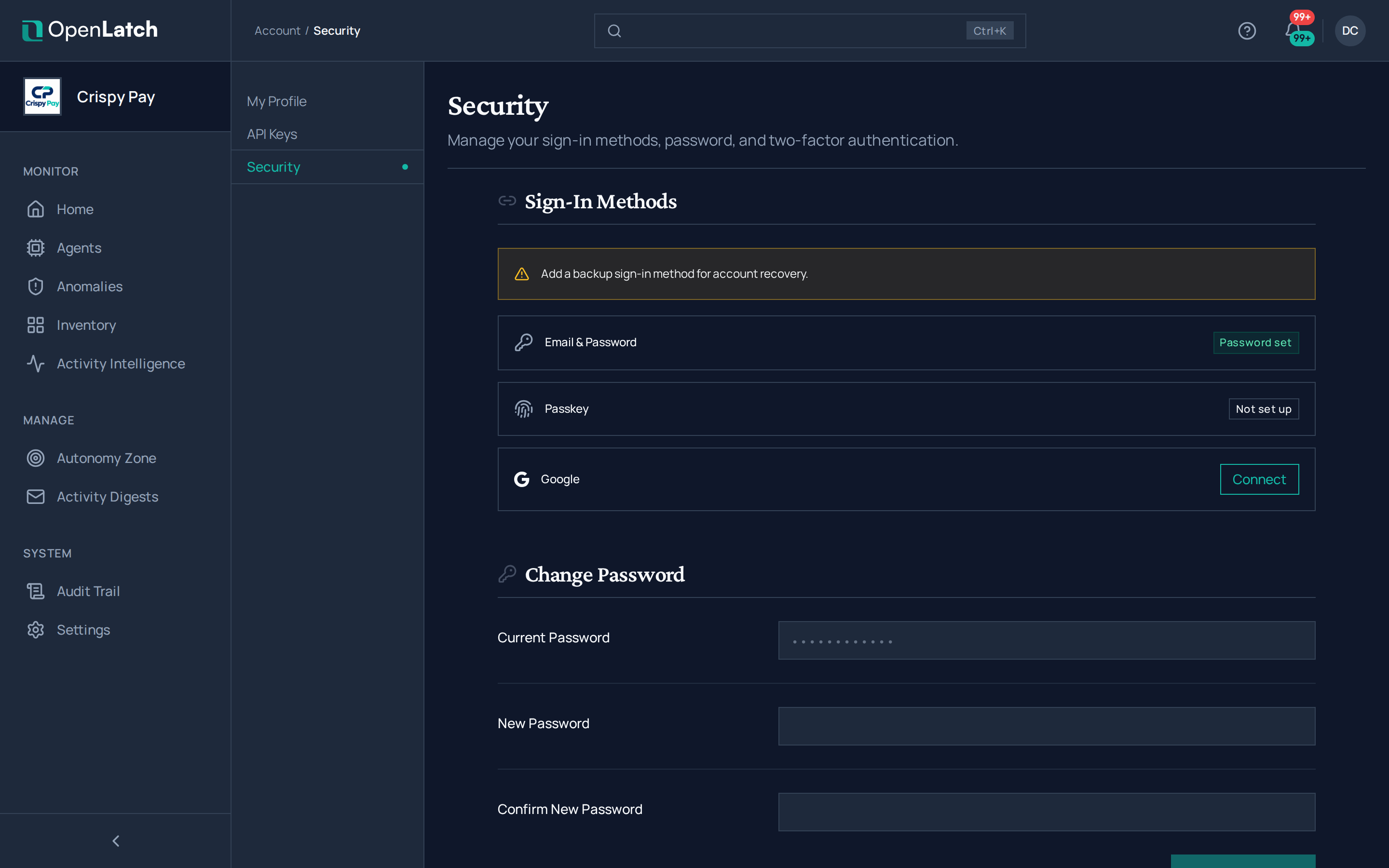
Section titled “Secure how you sign in”Account › Security manages your sign-in methods, your password and two-factor authentication.
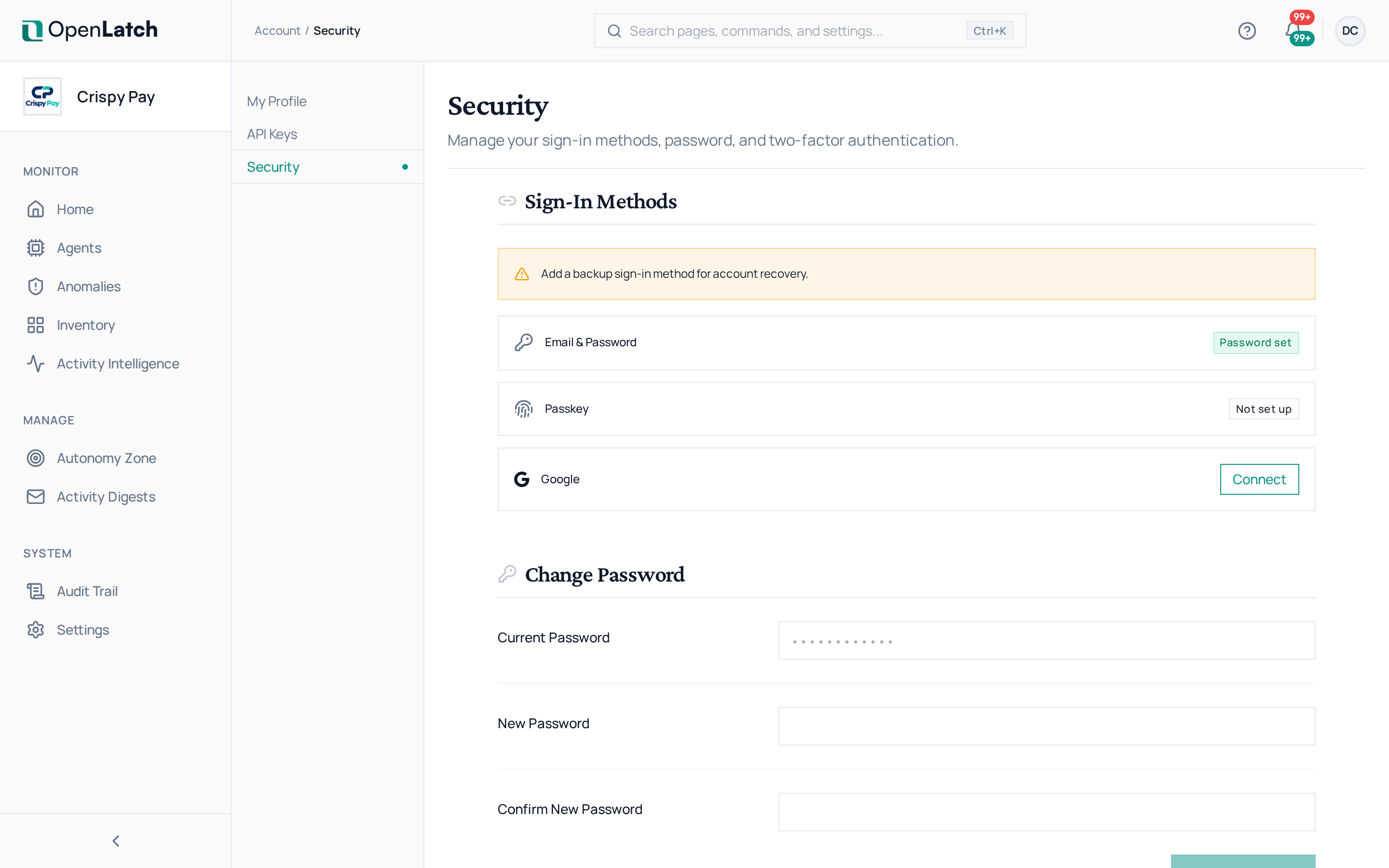
| Setting | What it does |
|---|---|
| Password | Change your password; the console asks for the current one first |
| Two-factor authentication | Adds a code from an authenticator app to each password sign-in |
| Passkeys | Sign in with a passkey stored on your device or in your password manager. Name each passkey so you can tell them apart |
| Delete account | Deletes your account. The console asks for your password to confirm |
To set up two-factor authentication:
- On Account › Security, start the authenticator app setup and confirm your password.
- Scan the QR code with your authenticator app.
- Save the recovery codes somewhere safe. Each code works once, and it is how you sign in if you lose the device.
- Enter a six-digit code from the app to finish.
If your organization requires two-factor authentication, the console sends you to this page until you set it up; see Set up single sign-on. Which sign-in methods you can use at all is your organization’s choice.
Keys for programs and for enrolling machines are on Account › API Keys; see Manage API keys.