

Read licensing and usage
Use Settings › Licensing to see what your organization is licensed for, how much of it is in use, and the terms it runs under. Retiring a host needs the admin role or higher.
Your license counts hosts: the machines that run the client. Each license also carries a monthly fair-use allowance of events.
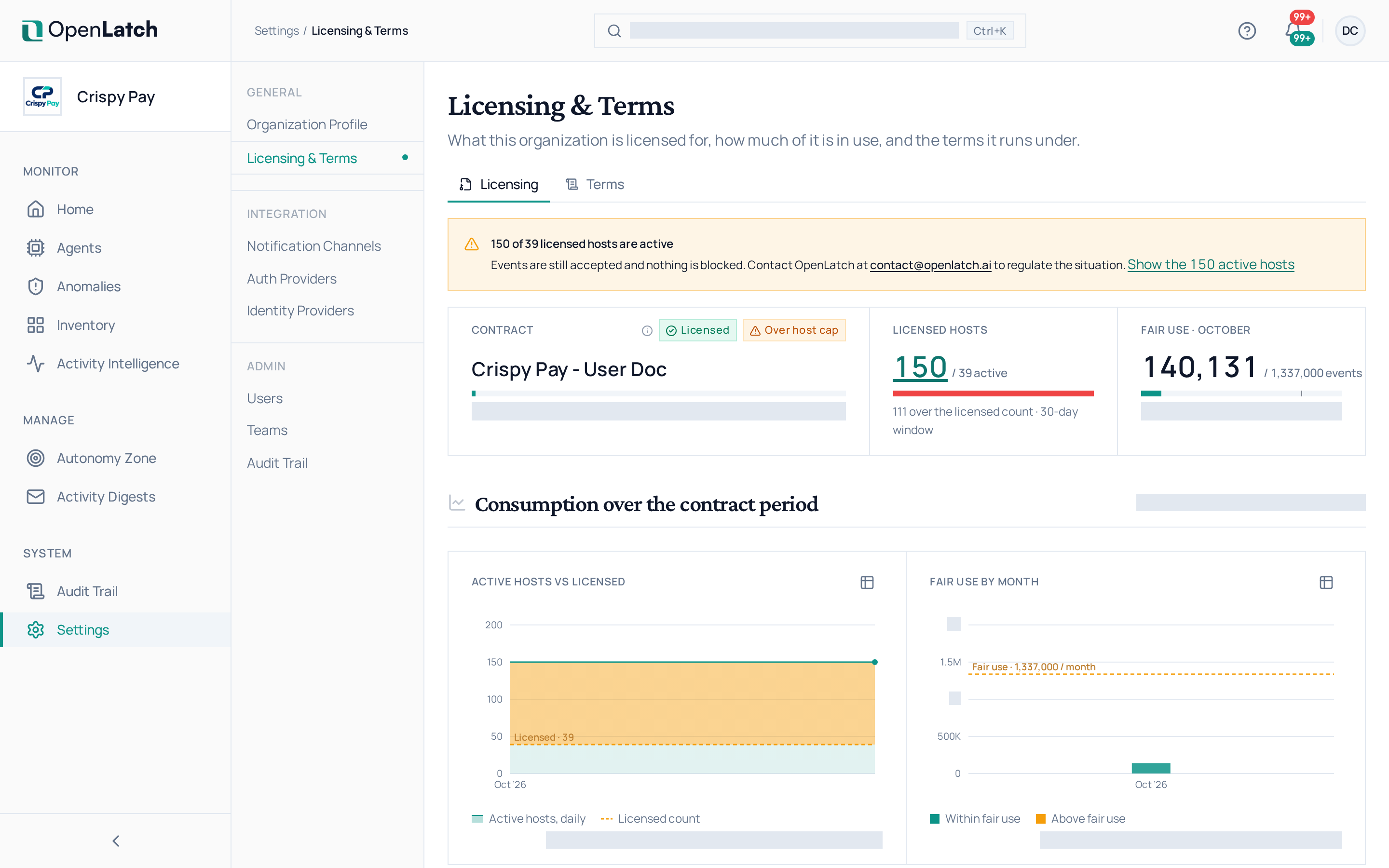
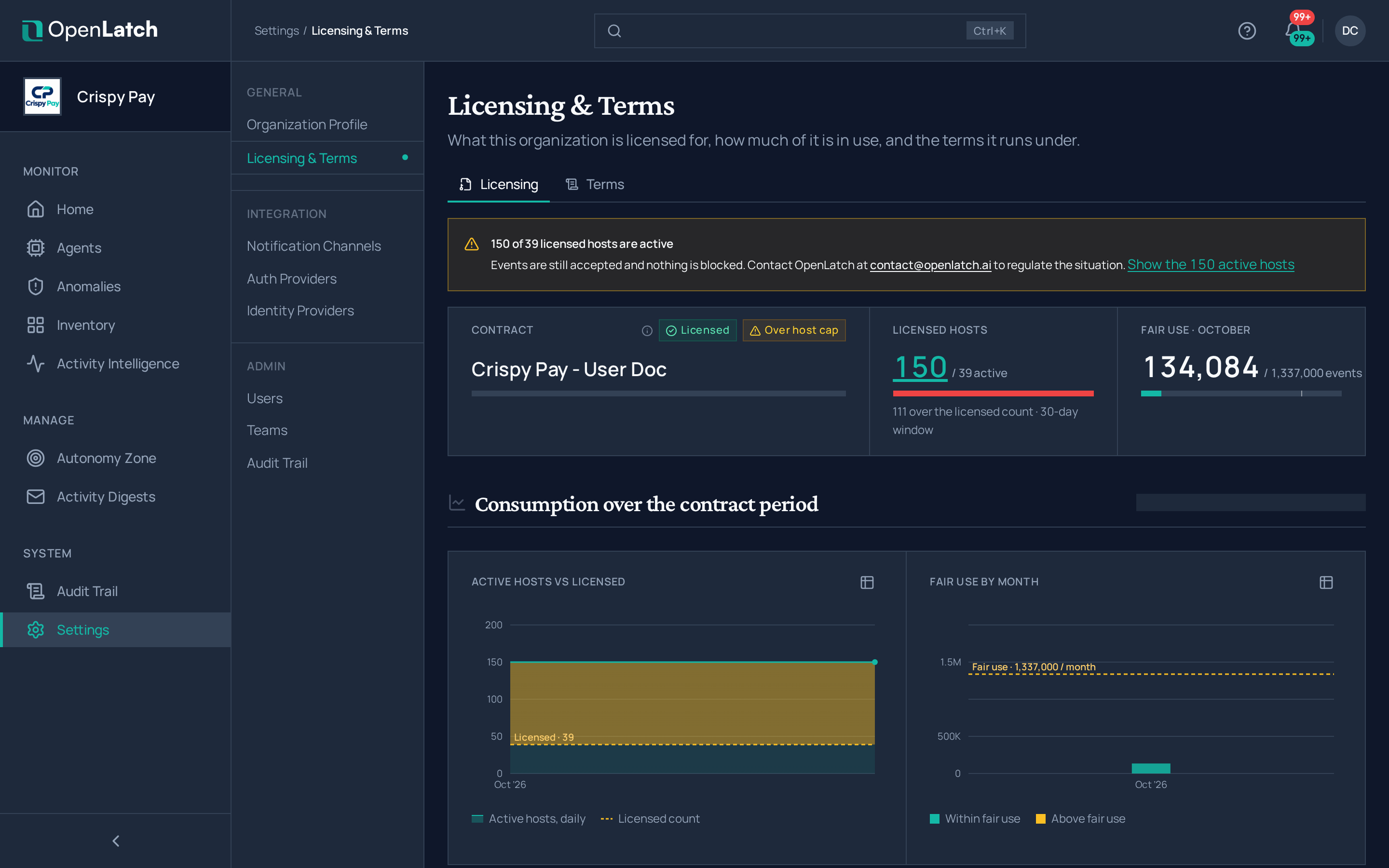
Read the meters
Section titled “Read the meters”The Licensing tab opens on three meters:
| Meter | What it shows |
|---|---|
| Contract | The period of your terms, and how much of it has elapsed |
| Licensed hosts | How many hosts are active, meaning seen in the last 30 days, against the number licensed |
| Fair use | The events used this calendar month, against the monthly allowance. It resets at the start of each month, in UTC |
A banner appears only when something needs your attention: the terms have not started yet, the contract ends soon, more hosts are active than licensed, or the month’s fair use has reached 100%. Going over the licensed hosts or the fair-use allowance blocks nothing; events are still accepted, and the banner asks you to contact OpenLatch at contact@openlatch.ai. The contract dates are different. Before your terms start, the console is available but client events are refused. Once the contract has ended, client events are refused and the console is restricted until the terms are renewed; contact OpenLatch at contact@openlatch.ai before the end date to renew.
Below the meters, the charts show active hosts against the licensed count and fair use month by month over the contract period, and the Terms tab holds the terms themselves.
Find a host
Section titled “Find a host”The licensed hosts table lists each host with its state, operating system, owner and last activity. Filter it by state, operating system, owner or last activity, or search it. Open a host to see the agents that run on it.
Retire a host
Section titled “Retire a host”Retire a machine that no longer runs the client, so it stops counting toward your licensed hosts.
- Select the host, or several hosts, in the table.
- Choose Retire host and confirm.
A retired host stops counting at once. Its event history is kept, and the retirement is recorded in the audit trail with your name. If the host is seen again, it counts again automatically. To remove the client from a machine, see Operate.