

Set up notification channels
Use Settings › Notification Channels to choose how and where OpenLatch delivers notifications and digest reports. You need the admin role or higher.
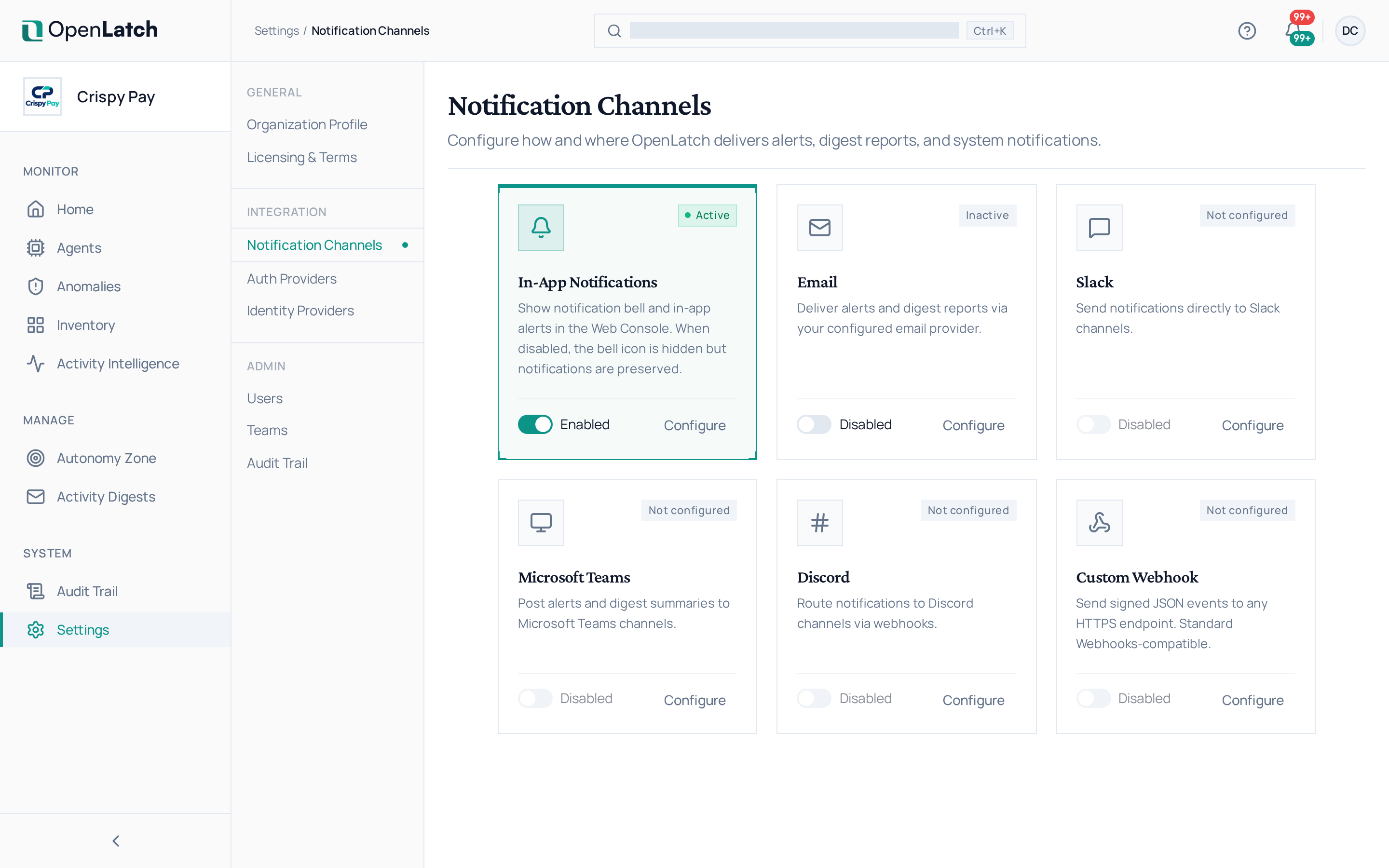
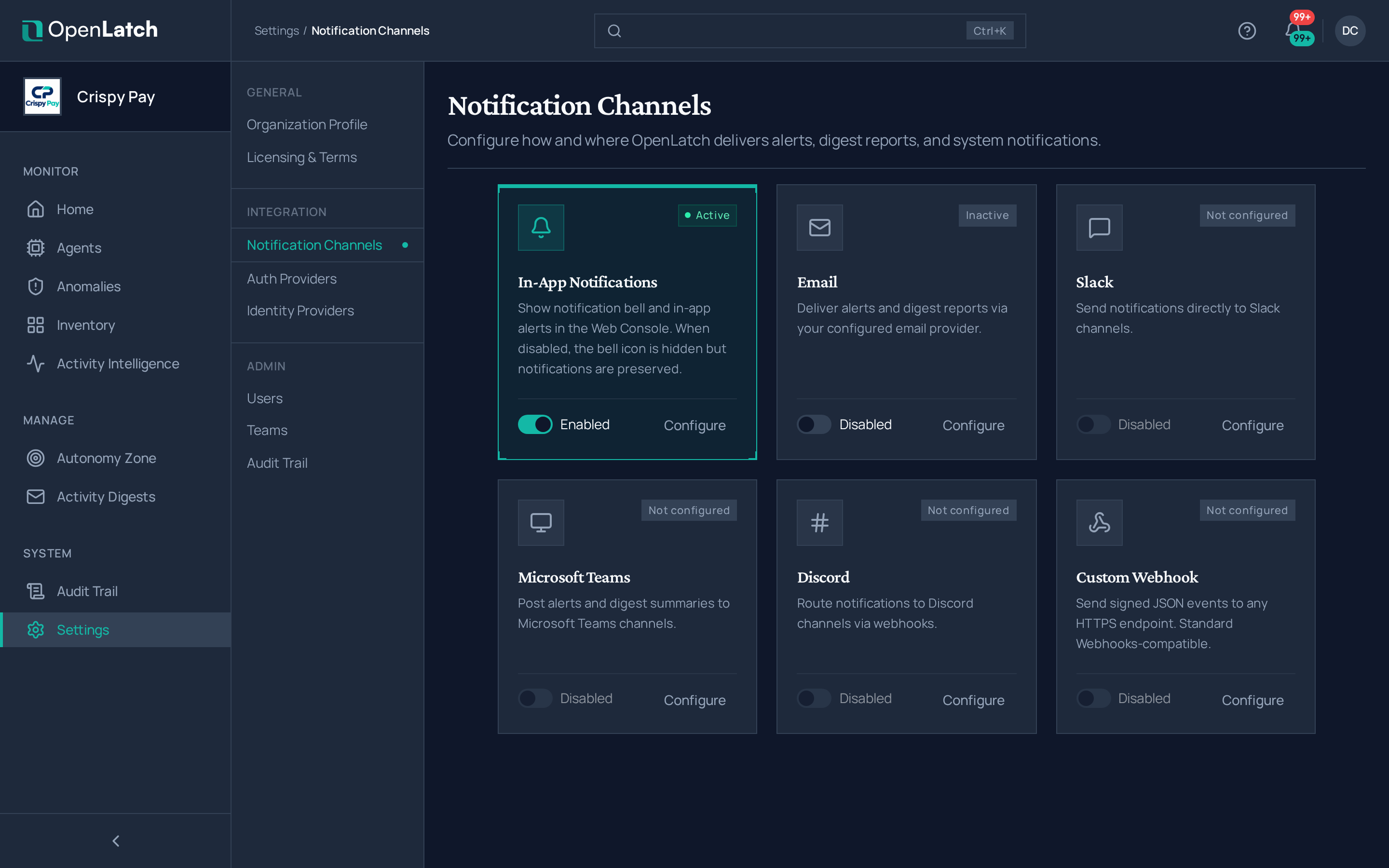
Channels
Section titled “Channels”| Channel | What it does |
|---|---|
| In-app notifications | Shows the notification bell in the console. Turning it off hides the bell; notifications are kept |
| Delivers notifications and digest reports through the email provider your OpenLatch site is configured with | |
| Slack | Sends notifications to Slack channels |
| Microsoft Teams | Posts notifications and digest summaries to Microsoft Teams channels |
| Discord | Routes notifications to Discord channels through webhooks |
| Custom webhook | Sends signed JSON events to any HTTPS endpoint, compatible with the Standard Webhooks specification |
Slack, Microsoft Teams, Discord and custom webhook channels can each be added more than once, for example one per team.
Add a channel
Section titled “Add a channel”- On the channel’s card, choose Configure.
- Follow the setup guide in the drawer, then enter the destination: a Slack, Microsoft Teams or Discord webhook address, or your own HTTPS endpoint.
- Choose which notifications the channel receives, and save.
- Send a test, and check that it arrives.
Verify webhook signatures
Section titled “Verify webhook signatures”A custom webhook signs every event with a signing secret, so your endpoint can check that an event came from OpenLatch. The secret is shown once, when you reveal it to copy into your endpoint’s configuration. Rotate signing secret issues a new one; update your endpoint at the same time.
To send a recurring report rather than individual notifications, see Schedule activity digests.