

Find and read an agent
Use the Agents page to find any agent that has reported to your organization, and its tabs to see who it acts for and which rules it runs under. Every role can read it.
Find an agent
Section titled “Find an agent”The Agents page lists every agent in the organization. The figures at the top count all agents, the agents seen within the selected window, and the agents not seen within it. Search by name, owner, platform or host, and filter the list to narrow it.
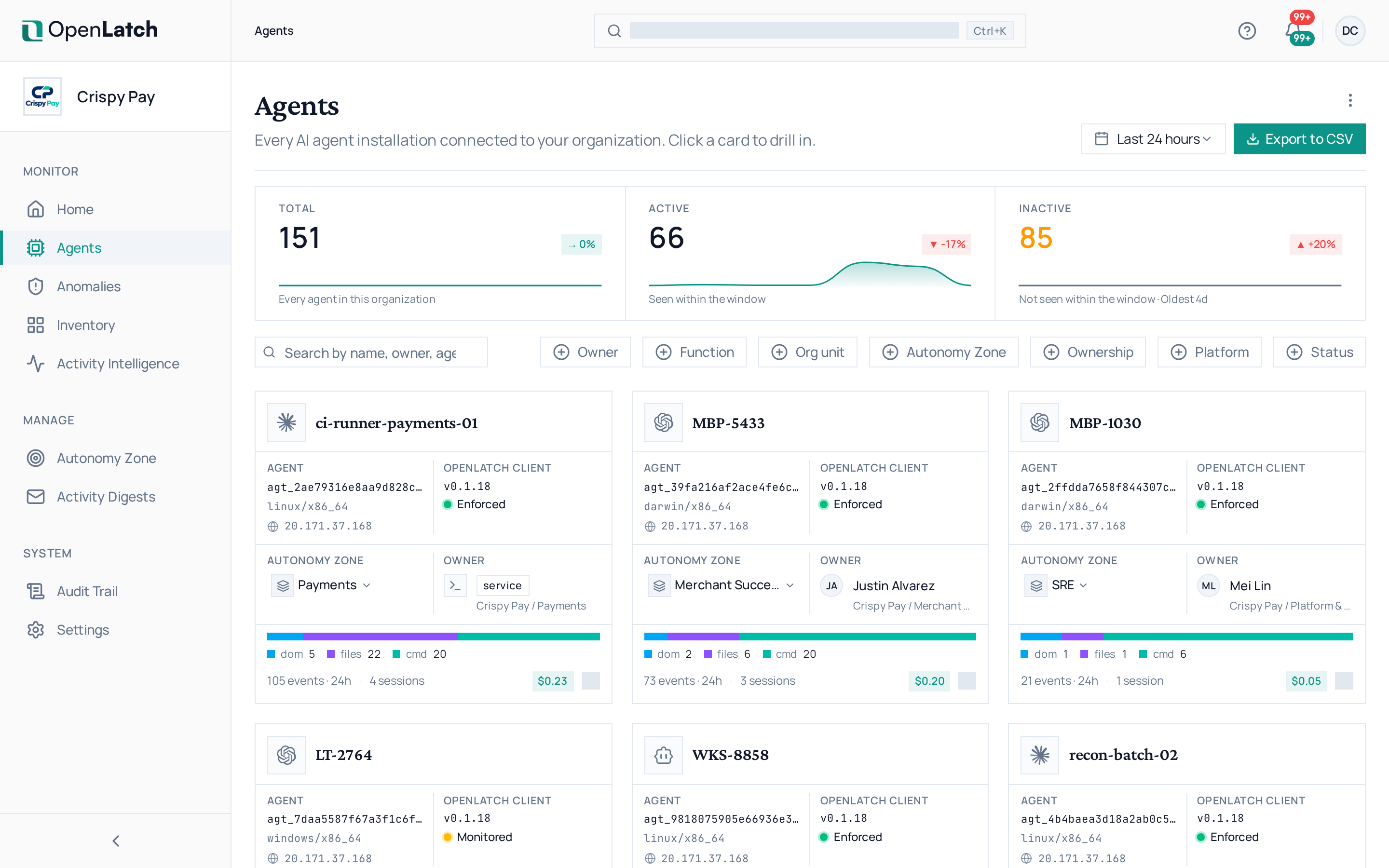
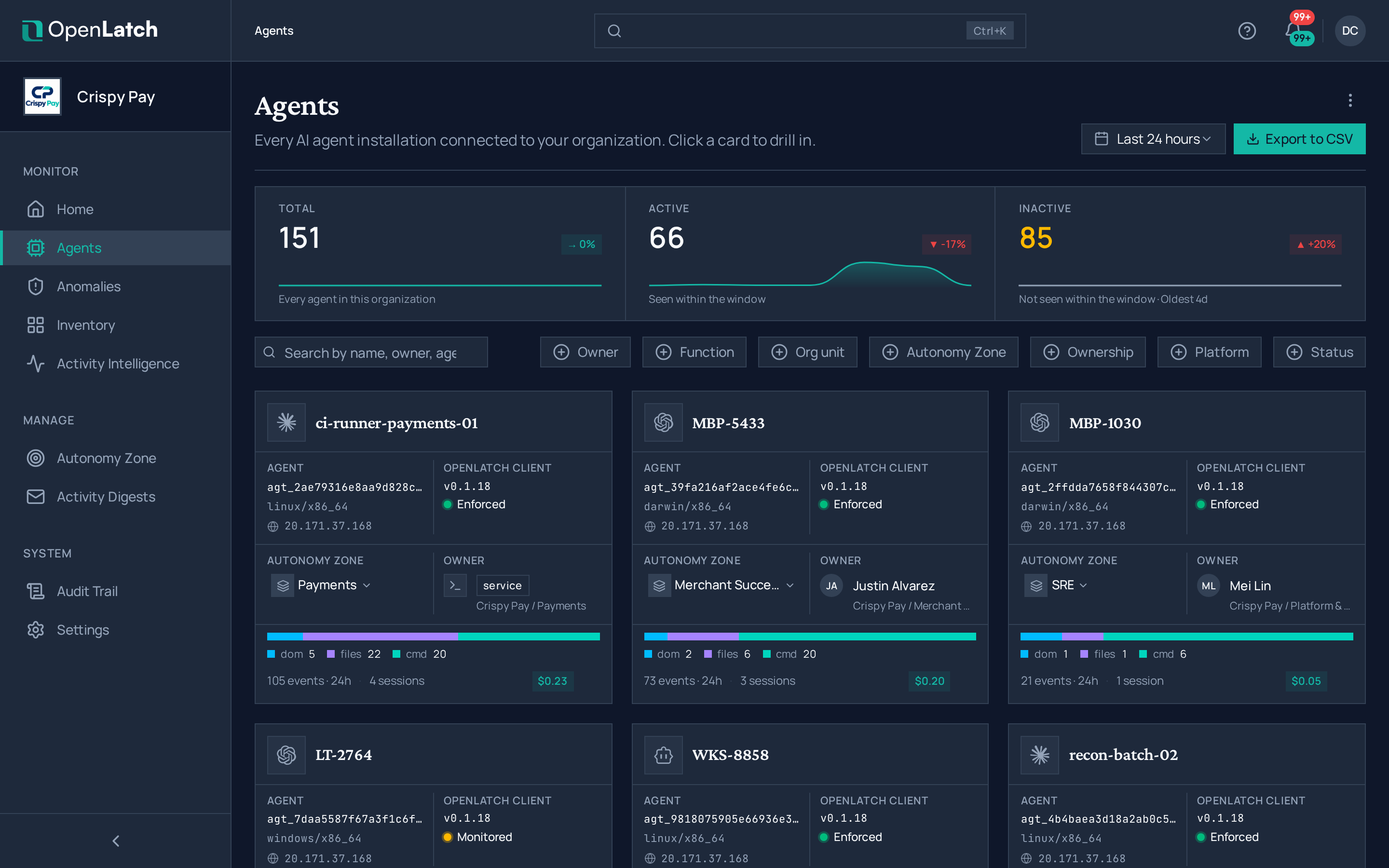
Each agent carries a control level: Enforced, Monitored or Known. It tells you what OpenLatch can do with that agent, so you never assume an agent is controlled because it is listed.
To connect a new agent, choose Install an agent and run the command it shows on the machine. Install the client explains the commands.
Read the overview
Section titled “Read the overview”Open an agent. Its Overview tab summarizes what it did over the selected window: its actions, the elevated ones among them, the endpoints it reached, and the anomalies it raised.
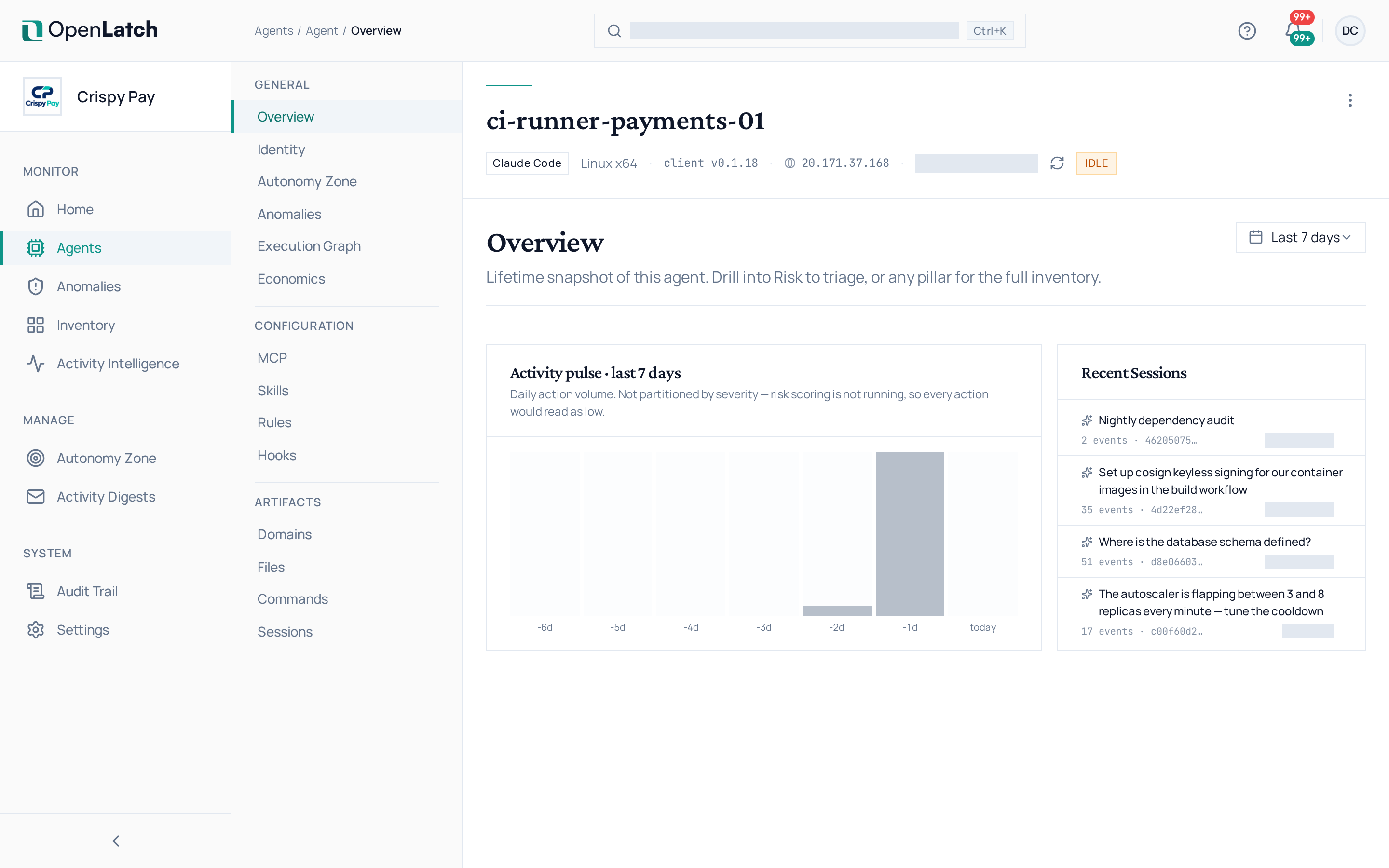
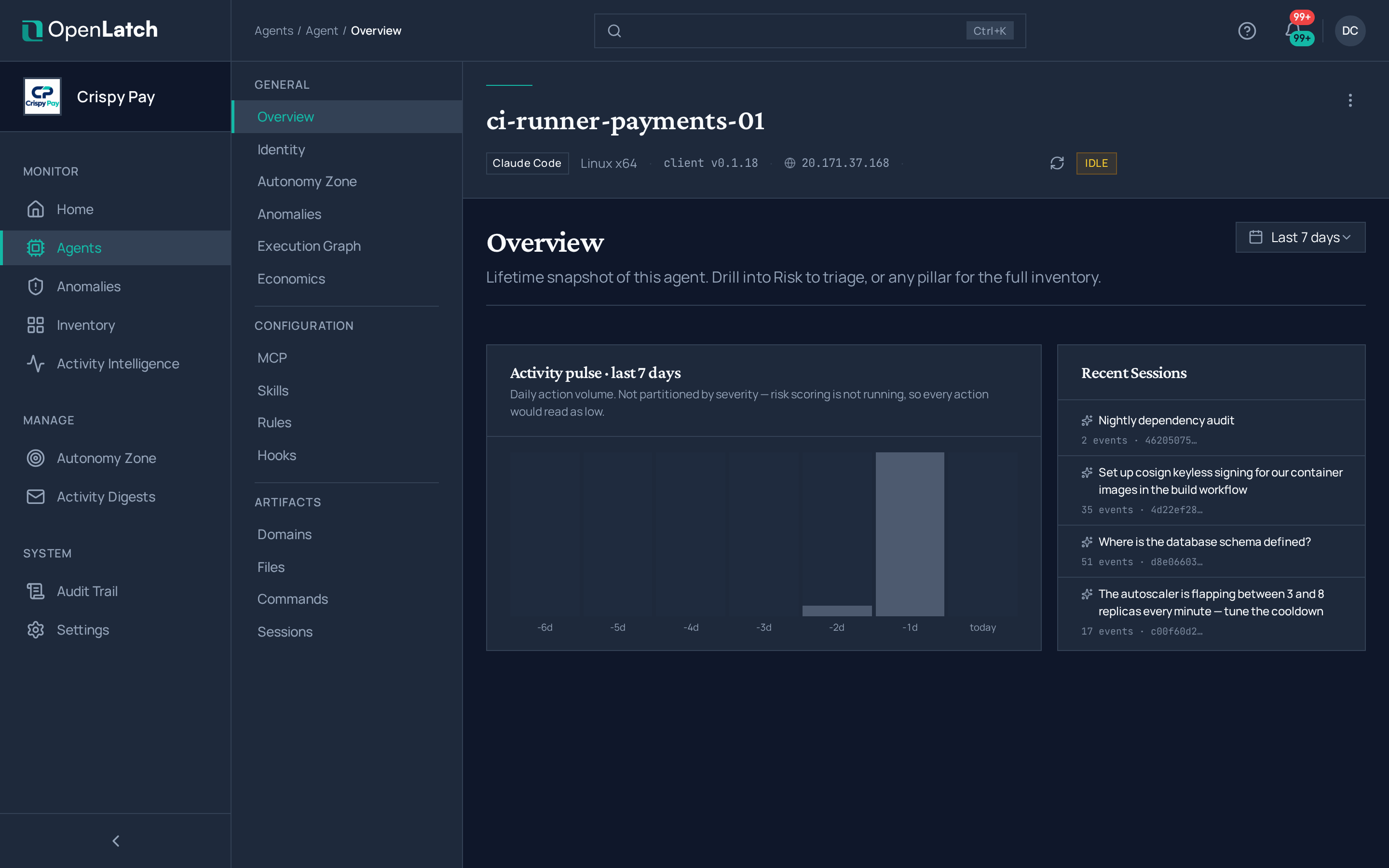
The other tabs are covered by Investigate what an agent did, Review an agent’s configuration and Track an agent’s spend.
Check who owns it
Section titled “Check who owns it”The Identity tab names the person accountable for the agent and where they sit in the organization. With a directory connected, the owner is resolved through a read-only lookup; see Connect a directory for owner lookup.
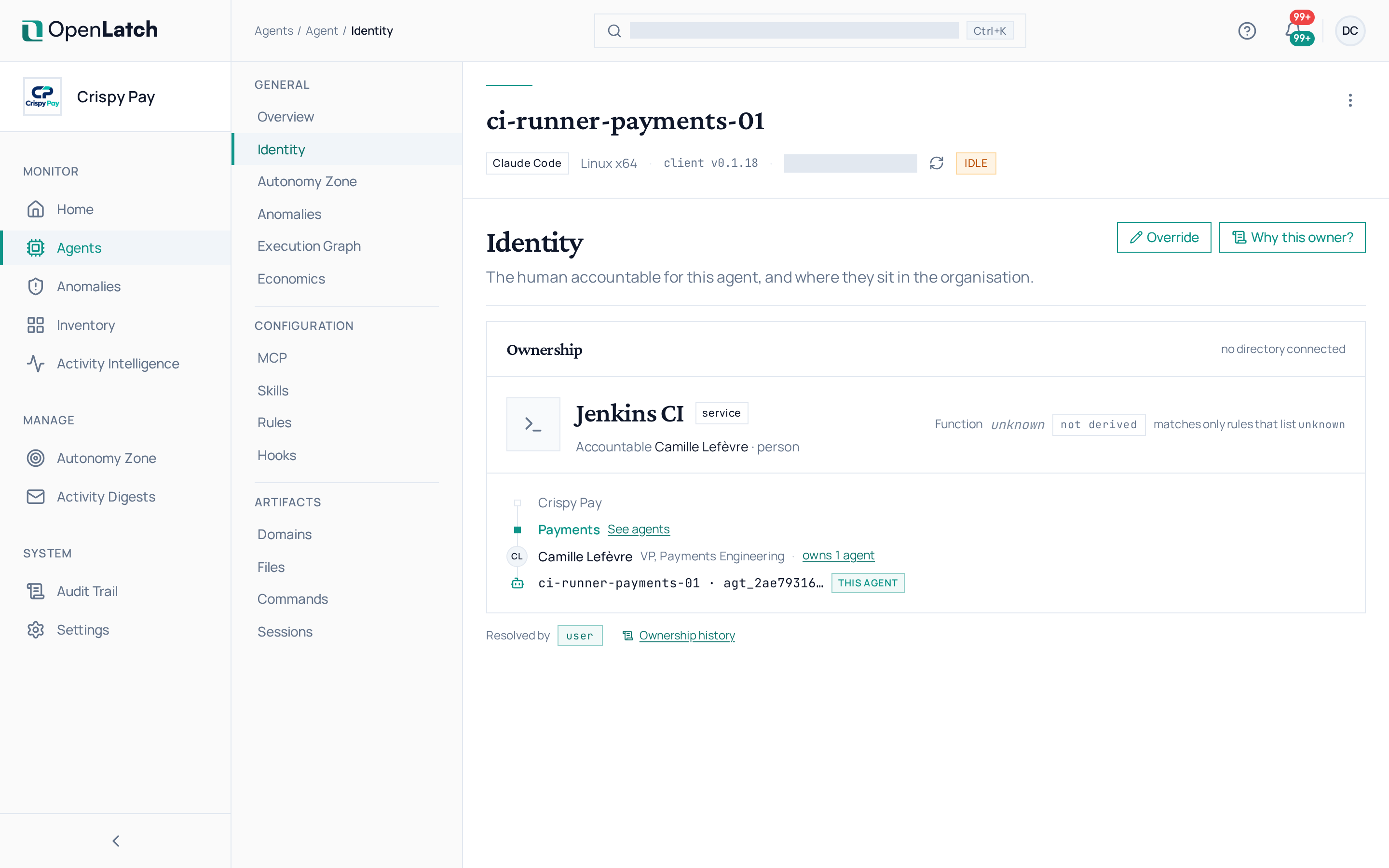
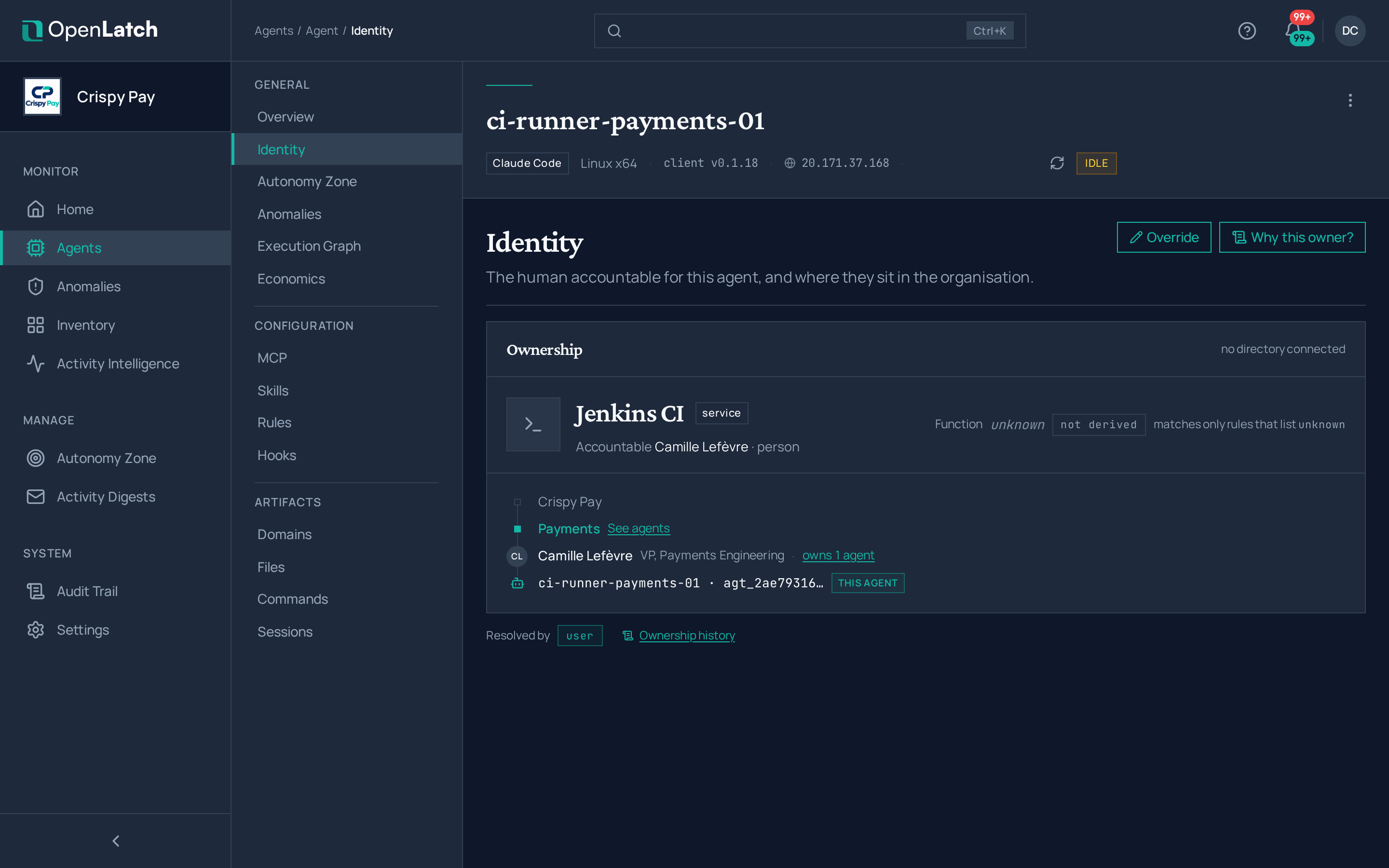
- Choose Why this owner? to see how the owner was resolved, from the signals the machine reported to the directory record they matched.
- If the owner is wrong, choose Override ownership and pick the right person. If that person is not in the directory, add them by hand with their email address and, optionally, their name and job title. For an agent that acts for a service rather than a person, name the service and the person accountable for it.
Overriding ownership needs the editor role or higher, and it is recorded in the audit trail.
See its Autonomy Zone
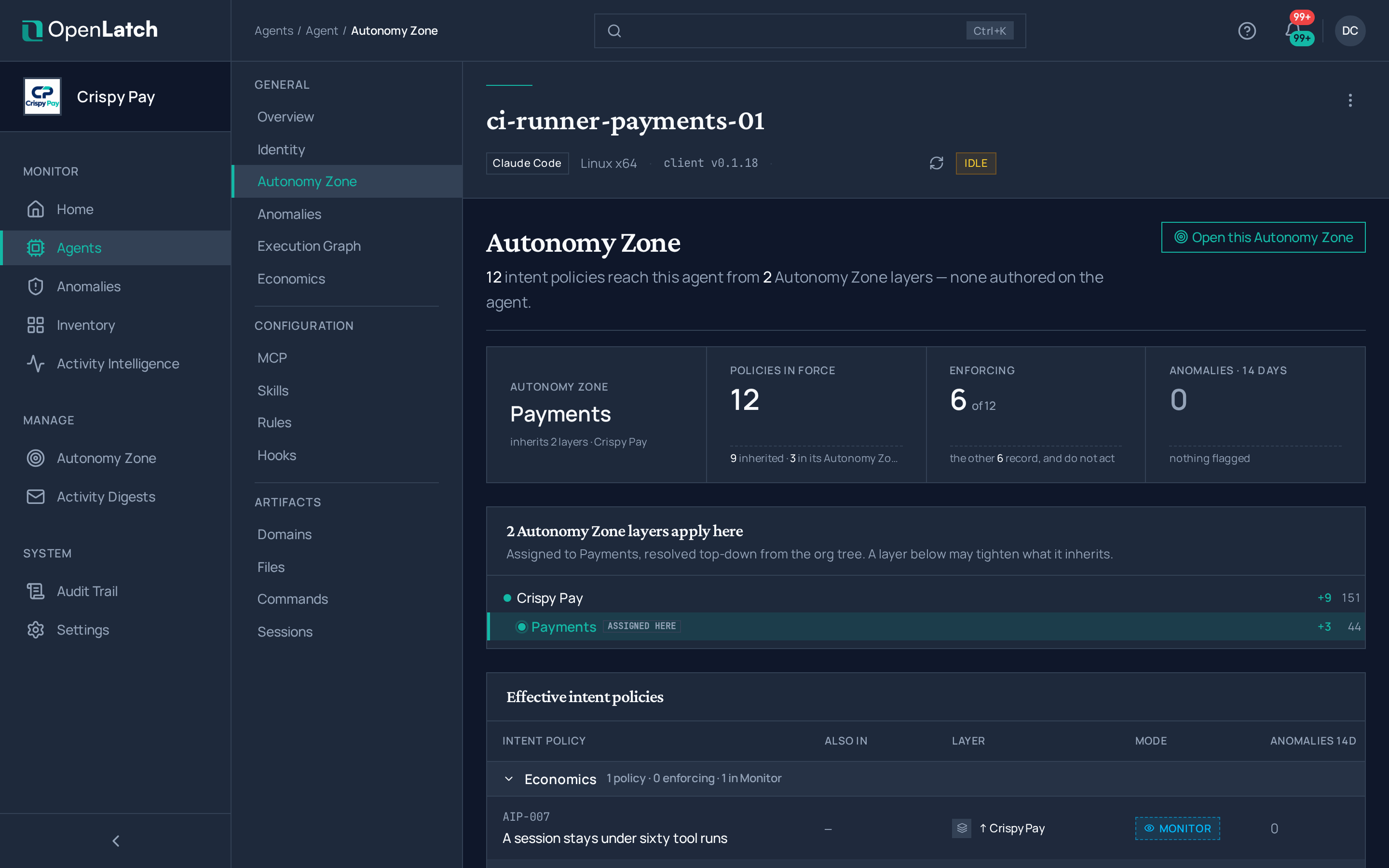
Section titled “See its Autonomy Zone”The Autonomy Zone tab shows the effective zone the agent resolves to: the layers it inherits, from the organization down to its own unit, and the intent policies in force on it. An agent at the Known control level is listed with its zone, but its zone is not enforced on it.
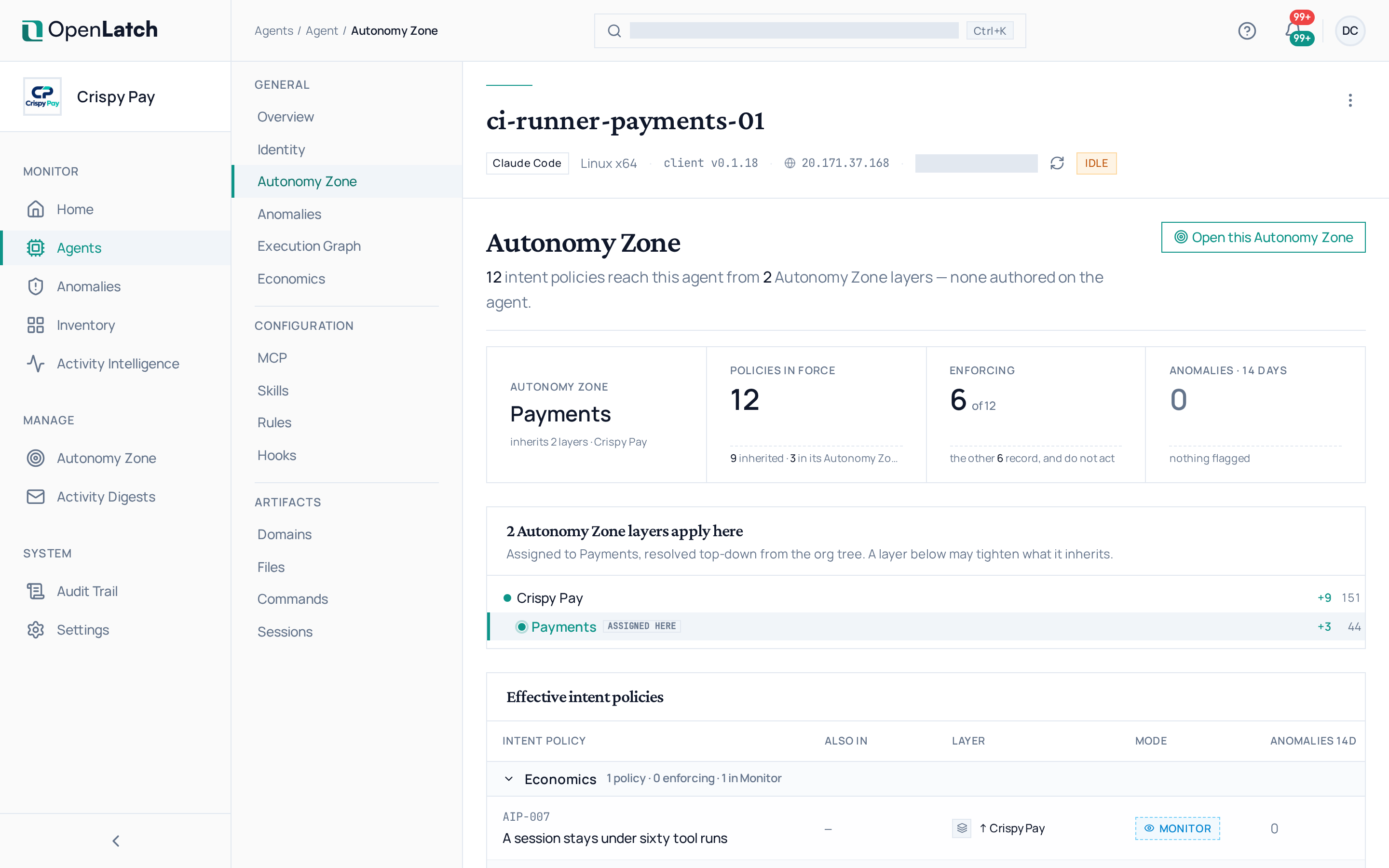
To move an agent to another zone, see Manage Autonomy Zones.
Remove an agent
Section titled “Remove an agent”Delete agent, in the agent’s actions menu, permanently deletes the agent with every session and event recorded for it; the history cannot be recovered. If the client on that machine sends another event, the agent comes back with a new ID. Remove the client from the machine first if the agent should stay gone; see Operate. The same menu exports the agent as JSON.